How to Configure a Model for Free
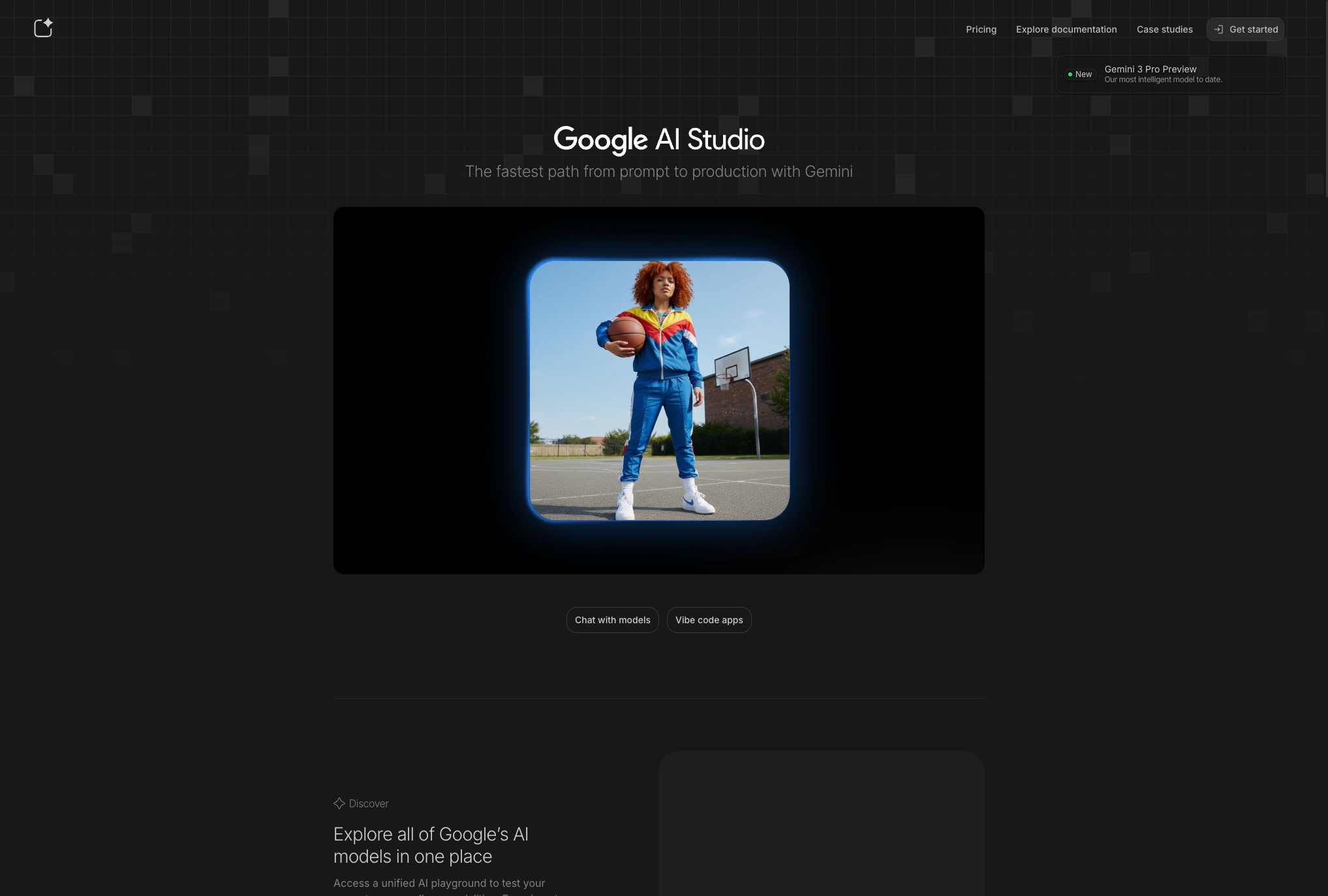
To use Tonto with AI-powered features, you'll need to configure an API key. This section will guide you through the process for both VS Code and Cursor. We suggest using Gemini 2.5 Pro for Tonto, or Gemini 2.5 Flash if speed is a concern. Go to Google AI Studio and create an account or connect with your google account.
⚠️ If you already have the paid version of Github Copilot or Cursor, you do not need to do this step.
Generating an API Key
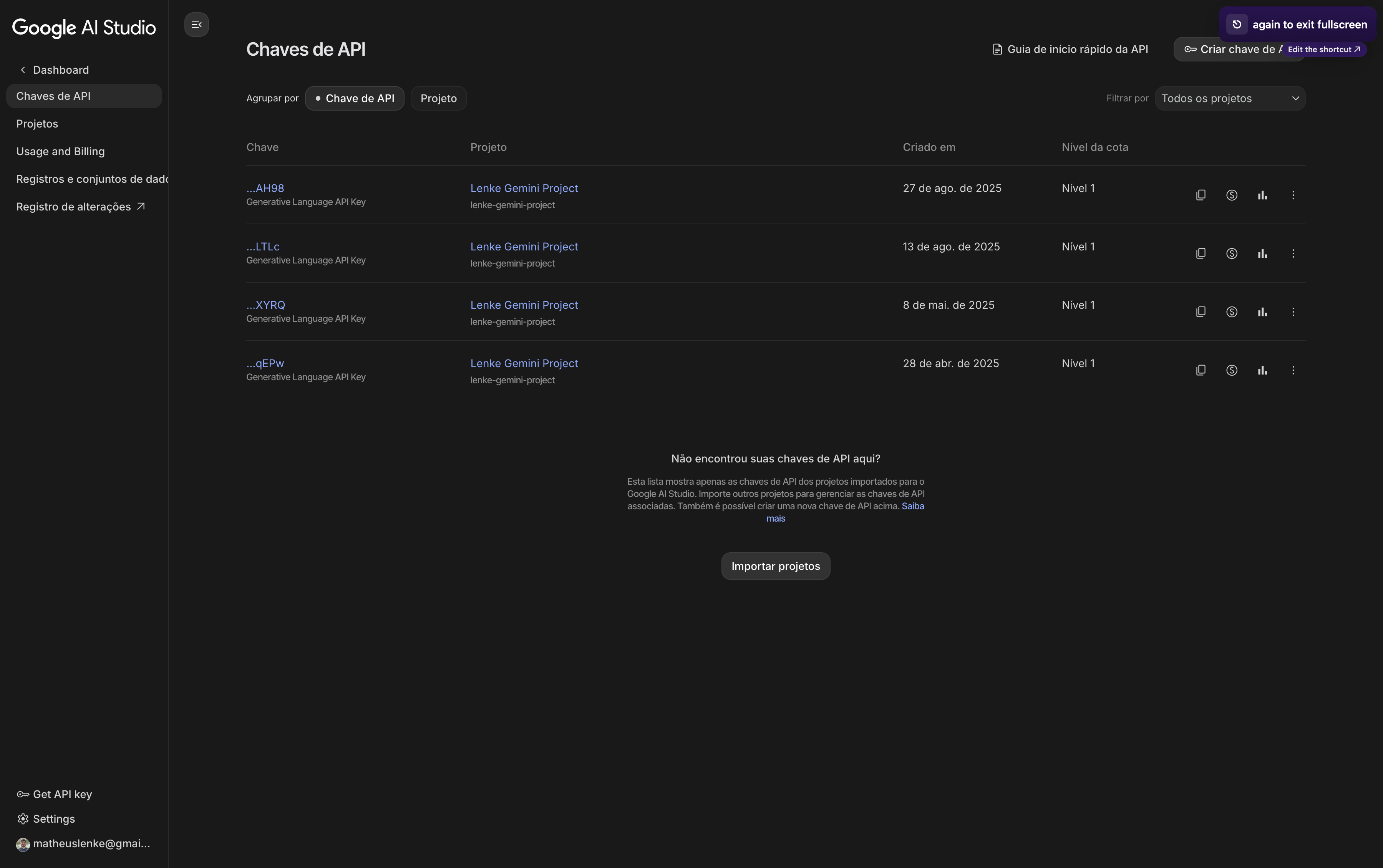
- Go to the "API keys" section
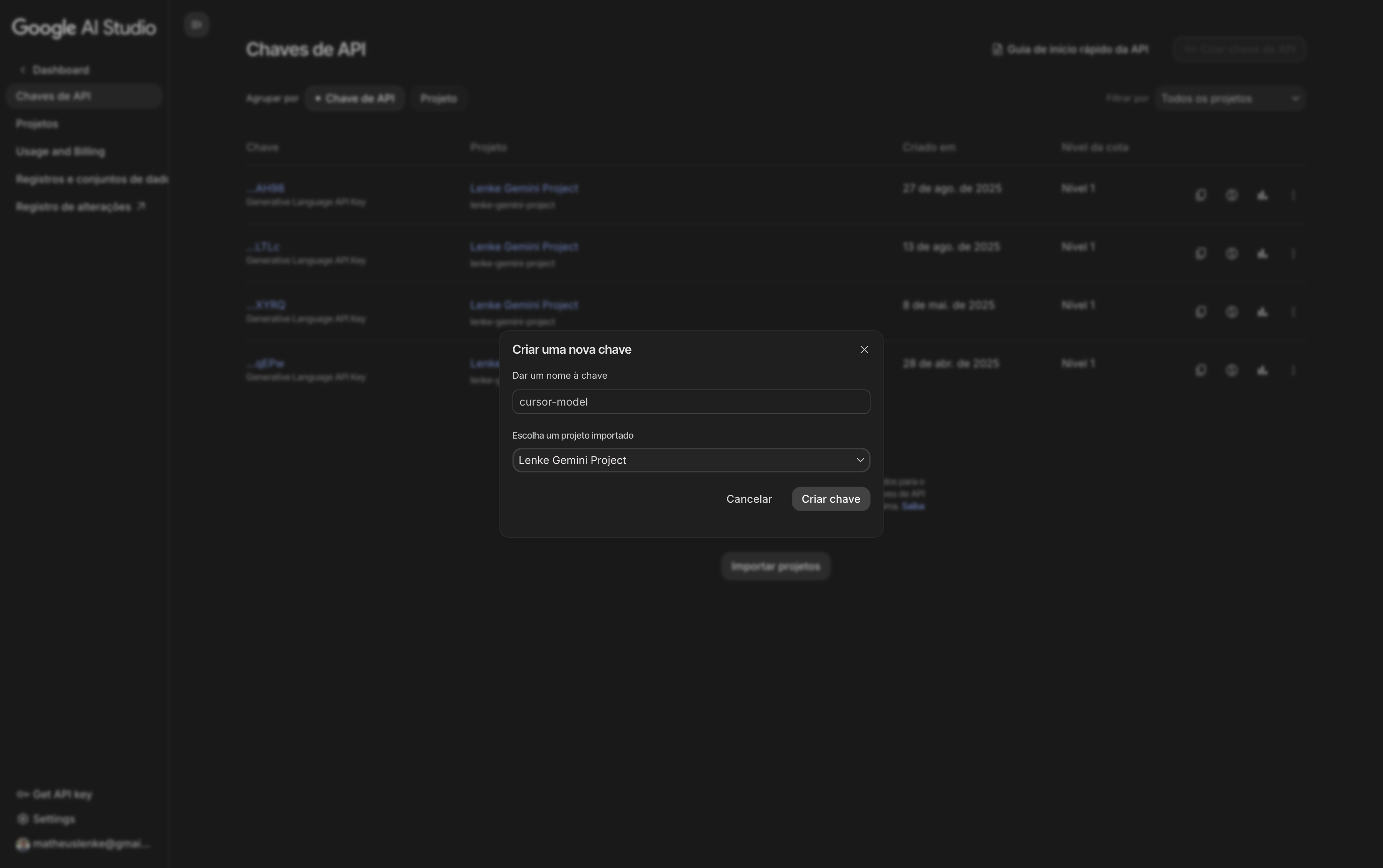
- Create a new API Key. Create a name and select a Project
- Copy the API Key and follow your IDE specific instructions below
VS Code Configuration
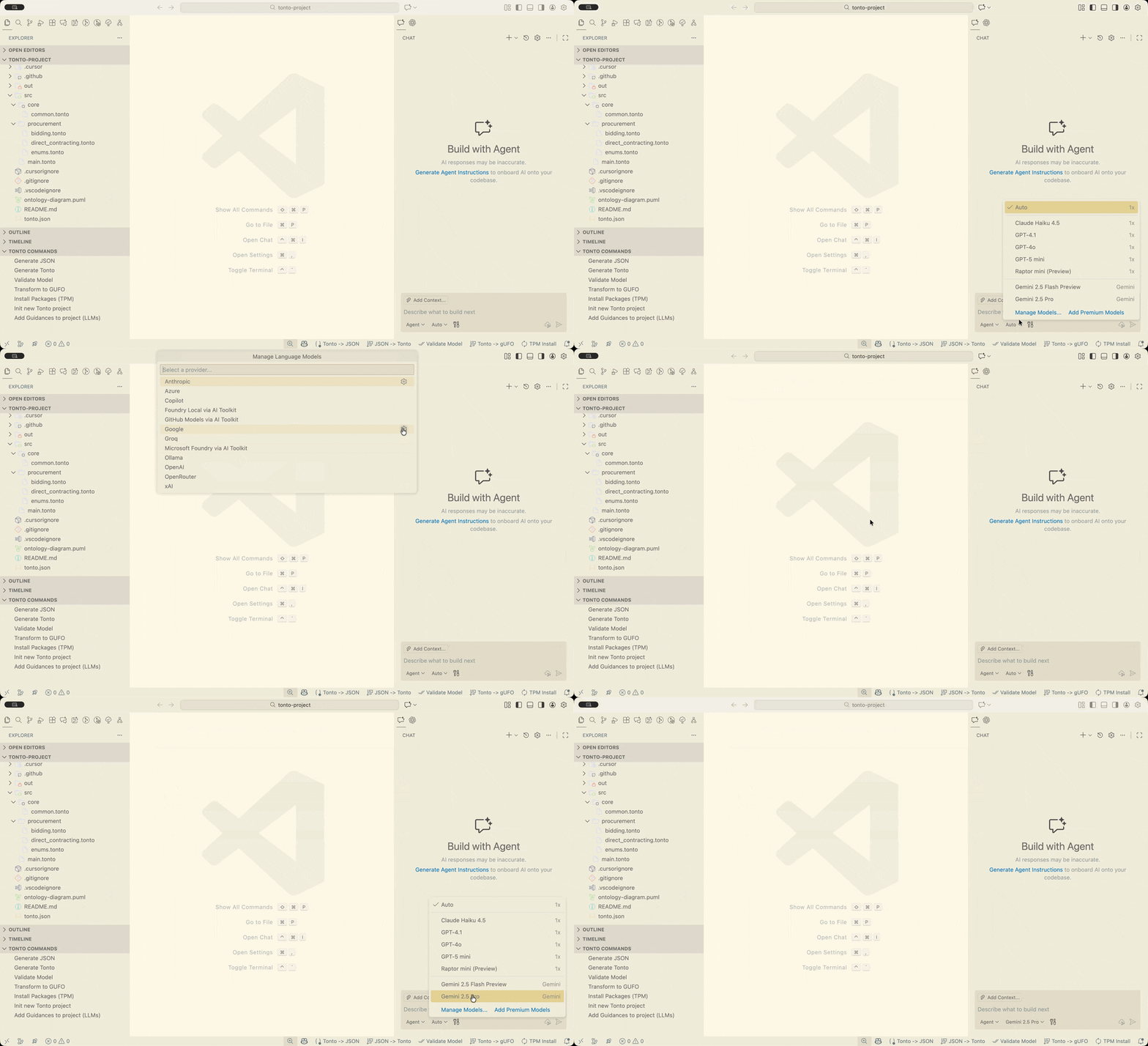
In VS Code, you must open the model selection at the chat bar on the bottom-right part of the editor. Select Manage Models... and click on the Google provider to configure the Gemini API Key.
Cursor Configuration
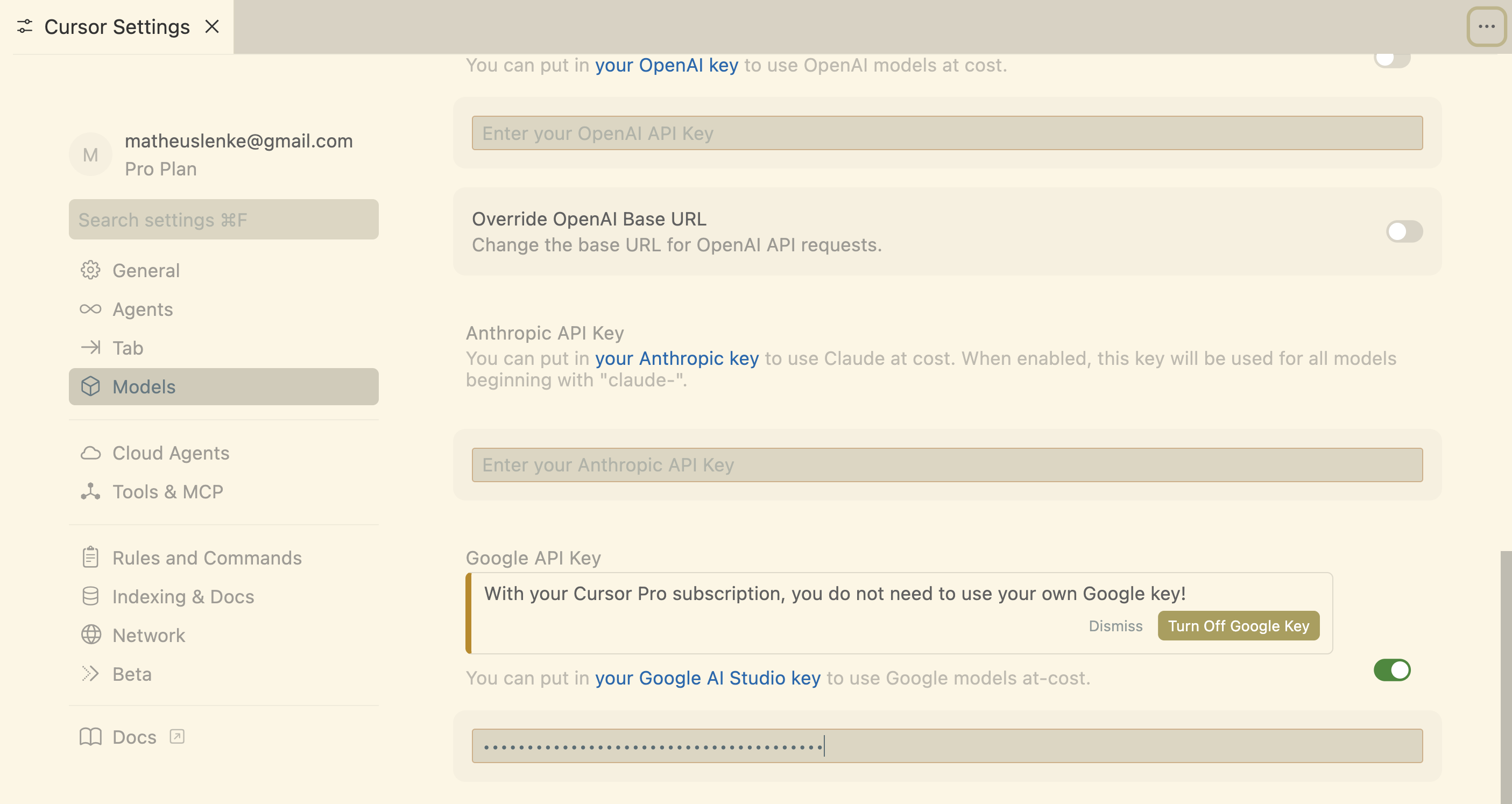
In order to configure your extension on Cursor, you must open Cursor Settings, then go to the Models tab. Search for the "Google API Key" option and insert the API Key you copied before.